Asset Management
Last updated: April 17, 2025
What are Assets and Asset Profiles?
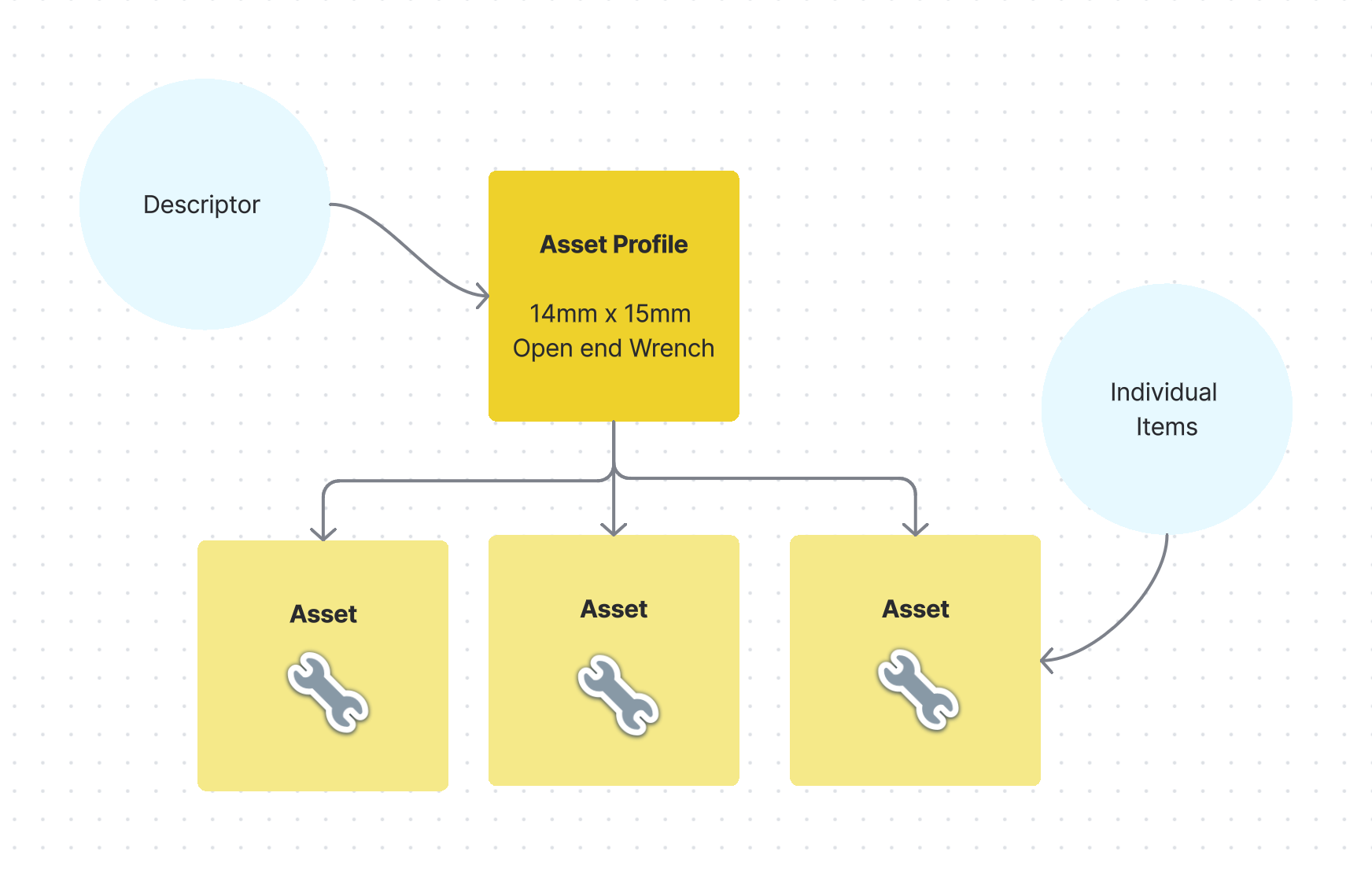
Assets are the physical items that a Team tracks by attaching an ItsWare tag and placing in one of their assigned Cabinets.
Asset Profiles group the Assets and contain the description for those Assets
Adding an Asset Profile
You must be an Administrator or team Moderator in order to add or edit Asset Profiles
You have freedom in how you organize your Asset Profiles, but the ItsWare UI assumes that all Assets placed under an Asset Profile are functionally identical items. Need other ways to organize your assets? Let us Know.
Web
Login and choose the "Asset Profiles" Tab
Click "Add New"
Add a Name (This name will pre-populate onto the name of all Assets that use this profile)
Add a Description
Mobile
Login and under the main hamburger menu choose the "Asset Profiles" menu item
Tap "Add New Profile" at the bottom of the screen
Add a Name (This name will pre-populate onto the name of all Assets that use this profile)
Add a Description
Editing an Asset Profile
You must be an Administrator or team Moderator in order to add or edit Asset Profiles
Editing an Asset Profile's name will not automatically rename any assets associated with that profile
Web - Administrator
Login and choose the "Asset Profiles" Tab
Select an Existing Asset Profile
Make edits and save
Web - Moderator
Login and choose the "Asset Profiles" menu item from the main menu
Select an Existing Asset Profile
Click "Edit" on the upper right of the screen
Make edits and save
Mobile
Login and choose the "Asset Profiles" menu item from the main menu
Select an Existing Asset Profile
Click the three dots menu, and choose "Edit" on the upper right of the screen
Make edits and save
Adding an Asset
You must be an Administrator or team Moderator in order to add or edit Assets
Before adding assets, your team needs to create your Asset Profiles
Adding Assets involves associating a physical ItsWare tag to a digital Asset Profile and assigning to a Team.
Mobile Device with NFC (Recommended)
Physically attach the tag to your asset
Open the ItsWare mobile app
Under the main Hamburger menu, choose "Tag Assets"
Choose the Asset Profile for the item
Choose one or more Teams that will have access to this item
Tap "Enable NFC Scanner" then touch your mobile device to the tag
Tap additional tags
Choose "Done Tagging" to save the assets
Mobile Device using QR code scanner
Physically attach the tag to your asset
Open the ItsWare mobile app
Under the main Hamburger menu, choose "Tag Assets"
Tap the + button in the upper right hand of the screen
Next to the EPC label, tap the QR icon
Scan the QR code on your ItsWare tag
Choose the Asset Profile for the item
Choose one or more Teams that will have access to this item
Choose "Add Item" at the bottom of the page
Repeat with additional tags
Choose "Done Tagging" to save the assets
A few Tips:
Tags not reading? Ensure NFC is turned on for your device
Using a device without NFC? Add tags using the QR code
Want Custom Names? By default, Asset names are the last three digits of your ItsWare Tag ID + the Asset Profile name. You can customize the asset name by tapping on the item during the tagging process or by editing the asset after saving.
Batch Process Items: You can change the Team and Asset Profile for any items during the tagging process, but may find it faster to do batches of items under the same Asset profile
Have ideas on how to improve the Asset Ingestion process, let us know.
Editing Assets
You must be an Administrator or team Moderator in order to add or edit Assets
Web - Administrator
Login and choose the "Asset" Tab
Select an existing Asset
Make edits and save
Web - Moderator
Login and choose the "Assets" Tab
Select an Existing Asset
Click "Edit" on the upper right of the screen
Make edits and save
Mobile
Login and choose the "Asset" Tab
Select an existing Asset
Click the three dots menu, and choose "Edit" on the upper right of the screen
Make edits and save